TL;DR
You can now import books from your Audible library into Bloox. Tap Import from Audible, pick a book, and Bloox adds it to your library on your iPhone.
Your library stays private on your device rather than being uploaded to Bloox servers. The first version supports US Audible accounts and imports books one at a time.
When I released Bloox, I started getting a version of the same message from several people.
Sometimes it came through Reddit. Sometimes through a direct message. Sometimes through the feedback button inside the app.
The details changed, but the basic shape was:
This looks great. I would like to try it. But I already have a giant Audible library. How do I get those books into Bloox?
This is a very reasonable question.
It is also the kind of question that reveals the difference between a feature technically existing and a feature being meaningfully usable.
Bloox has always supported standard audiobook files. M4B, MP3, folders full of chapters, Google Drive, iCloud. If you have the files, importing them is simple.
But most audiobook listeners do not begin with a tastefully organized folder of standard M4B files. They begin with years of purchases inside Audible.
So my first answer was usually: use Libation.
That answer was correct.
It was also not good enough.
The original path worked, if you were sufficiently motivated
Libation is a free, open-source desktop tool for managing your audiobook library as standard files. I use it myself. It is excellent.
Once you have those files, Bloox can import them from iCloud, from your phone, from Google Drive, or directly from your computer over Wi-Fi.
For someone already comfortable managing an audiobook library, this is a perfectly reasonable setup. It gives you control over your files. It works across apps. It is not tied to a single device.
For someone who downloaded Bloox because they wanted to read along with an audiobook and ask what they missed, it can feel like an unexpected side quest.
Install a desktop app. Connect your Audible account. Download the book. Find the exported file. Move it somewhere your phone can reach. Import it into Bloox.
None of those steps is individually outrageous.
Together, they create friction.
And friction is very good at killing curiosity. A person can be interested in a new app and still decide they do not want to spend their evening learning the surprisingly rich ecosystem of audiobook file conversion.
People were telling me exactly where the product was losing them.
So I started looking for a simpler path.
Designed with privacy in mind
The product experience is easy to describe: open the import sheet, choose Import from Audible, pick a book, and let it import.
I wanted that simplicity without asking users to hand over more trust than the feature actually needs. So privacy was the starting point, not an afterthought.
The goal was not merely to make Audible import easy. It was to make it easy while keeping your information private.
Your library stays private on your device. The books you import are stored locally on your iPhone and are not uploaded to Bloox servers for processing. If you sign out inside Bloox, the local data is cleared.
That is the version I would personally be willing to install on my own phone: simple to use, and private by default.
How to import an Audible book into Bloox
The actual user flow is intentionally boring. This is a compliment.
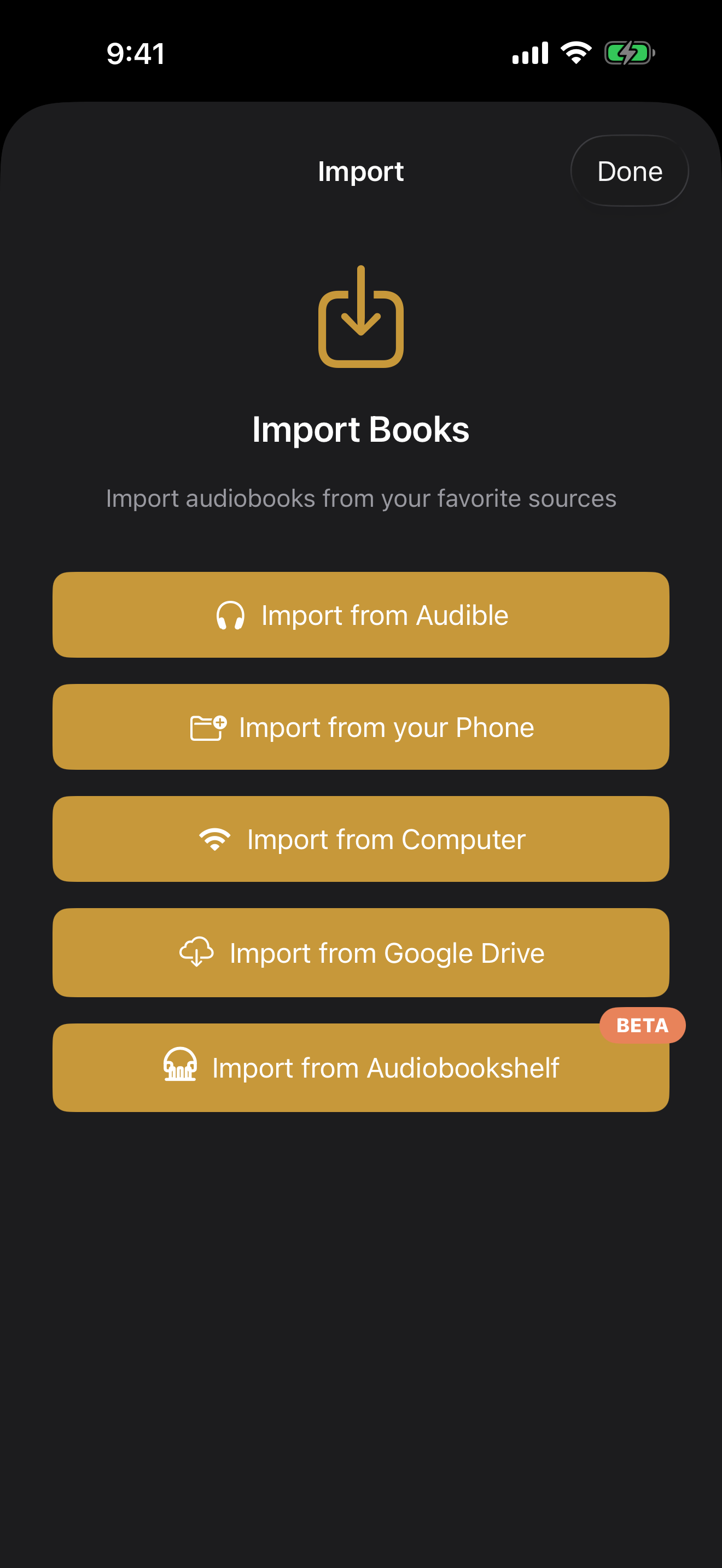
1. Open the import sheet
In your Bloox Library, tap the Add button. You will see the available import sources. Import from Audible appears at the top.
2. Connect your Audible library
Tap Import from Audible and follow the prompts to connect your Audible library.
3. Browse your Audible library
Once you are signed in, Bloox shows your Audible library. You can pull to refresh the list and tap a title to see its cover, author, narrator, length, description, and other metadata.
4. Choose Download & Import
Tap Download & Import. Bloox requests the selected book, starts the download, and returns you to your Library.
5. Follow progress in your Library
A temporary Audible Imports section appears above your book list. You can see download progress there. Downloads continue in the background if you switch apps or turn off the screen.
If a download finishes while Bloox is in the background, the app resumes that work the next time you open it.
There is no special Audible player after that. The book lands in Bloox as a normal local audiobook. That was important to me because otherwise the feature becomes a little island: Audible books over here, regular files over there, and now the user has to remember which features apply to which books.
I wanted the import source to disappear after the import was done.
Once the book is in your library, it is just your book.
What happens after you import?
The book you choose is downloaded to your device and added to your local Bloox library, alongside your other books.
Your audiobook stays on your device. It is not uploaded to Bloox servers for processing.
Once the book is inside your library, it behaves like the other books in Bloox. It can have chapter navigation, metadata, playback progress, transcription, spoken “What did I miss?” recaps, character help, and Book Chat.
This was one reason the feature was worth building carefully. Audible import is not a separate player bolted onto the side of the app. It is an easier front door into everything Bloox already does.
A few honest limitations
The first version is deliberately narrow.
- US Audible accounts only. Audible has different regional marketplaces. The current flow targets the US marketplace.
- One book at a time. You browse your library and choose individual books to import. This is not a bulk-migration tool.
- Purchased books are the intended path. Audible import is for the books you own.
I would rather be clear about those limits than pretend every Audible edge case has been solved forever. Software has a way of objecting to that sort of confidence.
Why not bulk import everything?
This is the obvious follow-up question.
If someone has a huge Audible library, why not let them import the entire thing in one button?
Because the first version should be boringly reliable before it becomes ambitious. Audiobook files can be large. Downloads can be interrupted. Importing uses real CPU and memory. Some titles may behave differently. A bulk importer multiplies all of that and then asks the user to understand a queue of failures, retries, partial successes, and possibly a very warm phone.
One-at-a-time import is less impressive in a demo. It is also much easier to understand when something goes wrong.
Pick the book you want to listen to next. Import that book. Confirm the experience works. Then import another.
That is not the final form forever. It is the right first step.
Why keep the Libation path?
Direct import makes the common case easier. It does not replace the value of owning and managing your own files.
If you want a full backup of your Audible library on your computer, want to organize files exactly as you like, or use multiple audiobook players, Libation is still a great tool.
Bloox supports both approaches.
You can take the direct route when you want to add one book and start listening. You can take the file-management route when you want a larger personal library workflow.
The point is not to force everyone into the same hobby.
The point is to remove the unnecessary steps between “I have an audiobook” and “I am listening to it in the app I want to use.”
This feature came from listening to users
I built Bloox because I wanted a better audiobook experience for myself. But releasing an app changes the nature of the project.
People bring their own habits. Their own libraries. Their own assumptions. Their own entirely reasonable unwillingness to install three things before trying the first thing.
The repeated Audible question was useful because it was not asking for a random extra feature. It was identifying a barrier to the features already there.
Transcription is only helpful after a book is imported.
Recaps are only helpful after a book is imported.
Book Chat is only helpful after a book is imported.
Sometimes the highest-leverage product work is not inventing another clever thing. It is making the clever things easier to reach.
Bring your next Audible book into Bloox
Bloox is free on the App Store. Import one of your Audible books and try the smarter listening features with a story you already own.
Download Bloox Learn more about Bloox →